Important Emails Going to Spam? How to Whitelist a Sender in Gmail, Outlook, Apple Mail & Yahoo
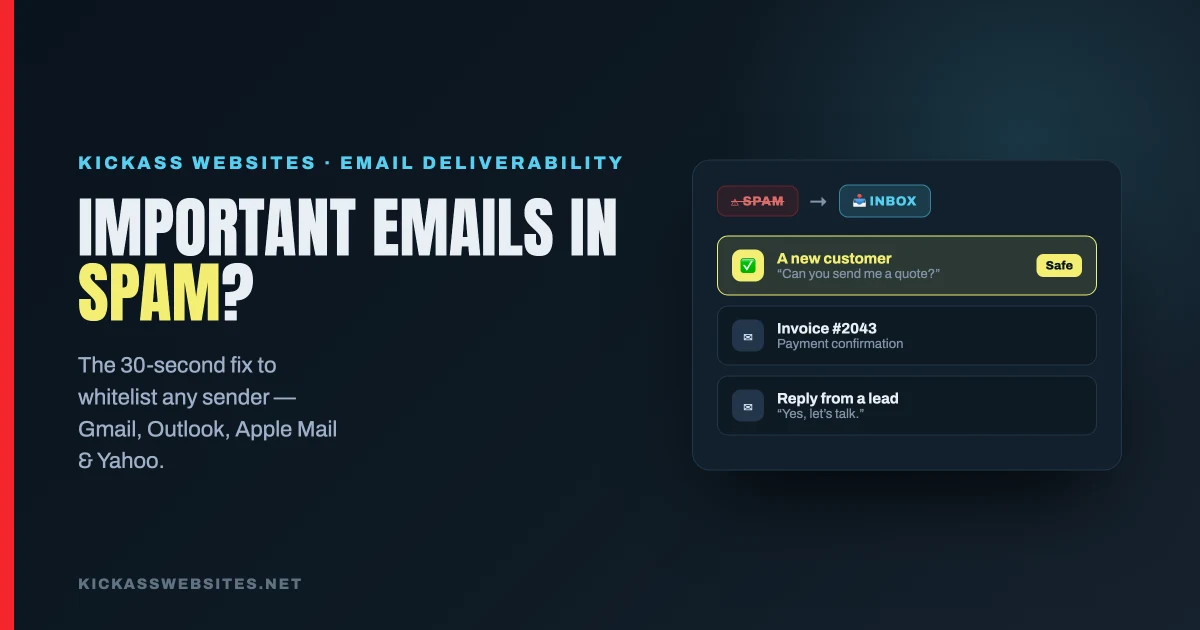
An email you never see is an opportunity you never get. A new customer asking for a quote. An invoice. A reply you were waiting on. If important messages keep landing in your spam folder, you’re not just annoyed – you’re losing business without knowing it.
Here’s how to make sure the senders you care about always reach your inbox. Takes about 30 seconds.
What Does “Whitelisting” Actually Mean?
It just means telling your email app: “This sender is safe – always let them through.”
You don’t need to touch any settings. The easiest way to do it is the same thing you already know how to do: save them as a contact. Your inbox automatically trusts anyone in your contacts, so their emails skip spam from that point on.
That’s it. Really.
The 30-Second Fix – Do This First
Add the sender’s email address to your contacts.
Open an email from them, tap or click their name, and choose “Add to Contacts.” Most inboxes treat your contacts as a trusted list automatically – no extra steps needed.
If you can’t find the email in your inbox, check your Spam or Junk folder first, then follow the steps for your email provider below.
Step-by-Step by Email Provider
Tap the one you use:
📧 Gmail
- Open an email from the sender – check your Spam folder if you don’t see it in your inbox.
- If it’s in Spam, click “Report not spam” at the top. This moves it to your inbox and teaches Gmail to trust them.
- Click the sender’s name at the top of the email.
- Click “Add to contacts” (the person icon with a +).
Done. Future emails from that address will land in your inbox.
📧 Outlook / Hotmail / Office 365
- Open an email from the sender – check your Junk folder if it’s not in your inbox.
- If it’s in Junk, click “Not junk” at the top. This moves it and marks the sender as safe.
- Right-click (or tap and hold on mobile) the sender’s name → “Add to Contacts”.
- Optionally: go to Settings → Mail → Safe senders and add their email address there too. This is the most permanent fix in Outlook.
📧 Apple Mail (iPhone, iPad, Mac)
- Open an email from the sender.
- Tap or click their name or email address at the top of the message.
- Tap “Add to Contacts” → fill in their name if you want → tap Done or Save.
Apple Mail trusts anyone in your Contacts automatically, so this is all you need to do.
Bonus (Mac only): If Mail has been marking their emails as junk, open one of those emails and click “Not Junk” in the banner at the top. This retrains your Mac’s spam filter.
📧 Yahoo Mail
- Open an email from the sender – check your Spam folder if needed.
- If it’s in Spam, click “Not Spam” at the top. This moves it to your inbox and flags the sender as safe.
- Click the sender’s name → “Add to Contacts”.
Already in Spam? Do This Too
Opening the email and clicking “Not Spam” (or “Not Junk”) does two things: it moves the message to your inbox and it teaches your email that the sender is legitimate. Most email apps get smarter the more you do this – after a couple of times, they stop sending that person to spam at all.
If it keeps happening even after you’ve done this, the sender may need to fix something on their end (like their email setup or the address they’re sending from). But for most people, the steps above solve it permanently.
Why This Matters More Than You Think
For a local business owner, a missed email isn’t just annoying – it’s a missed customer.
Someone goes to your website, fills out your contact form, and never hears back. Not because you ignored them. Because their message landed in your spam folder and you never knew it existed. They move on. They call someone else. You lose the job.
At Kickass Websites, we build fast, lead-generating websites for local businesses – and we make sure those leads actually have a chance to reach you. If your current site isn’t generating inquiries, or if you’re not sure those inquiries are getting through, let’s talk.
A better website shouldn’t just look good. It should work.
Stop losing jobs to better websites.
We build one that wins the call – live in 48 hours, $497, guaranteed three ways.
Get My Website Live – $497 →